Portrait Mode and the Stray Hair: Where Software Blur Breaks Down
Portrait Mode can soften a background while leaving an uneven edge around fine hair, glasses, or overlapping shapes. A few changes to the scene—and a careful comparison with the regular photo—help you decide when simulated blur looks natural.
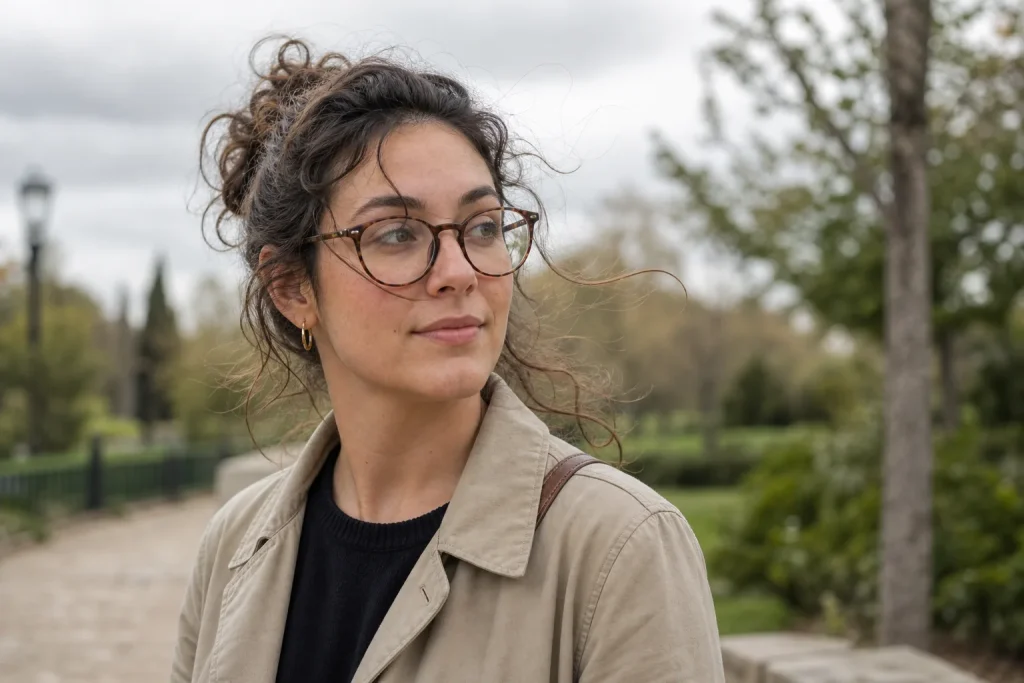
Portrait Mode can soften a background while leaving an uneven edge around fine hair, glasses, or overlapping shapes. A few changes to the scene—and a careful…
Camera Controls · 7 min read
A single flyaway hair can expose the boundary Portrait Mode is trying to hide. The background may look smoothly blurred while a few strands disappear, acquire a soft halo, or carry a strip of sharp scenery with them. The exact processing varies by phone and camera app, but the visible issue is the same: the softened background does not meet the subject cleanly.
Portrait effects usually rely on software to identify a subject and separate it from the background. Some phones use depth information from multiple cameras or sensors; others infer separation from image data or combine methods. Fine strands, transparent surfaces, and overlapping shapes can challenge that separation. The useful response is to improve the scene’s clarity, inspect the result, and choose the regular photo if the artificial edge remains distracting.
Why can Portrait Mode lose fine hair?
Portrait processing tries to distinguish the subject from what sits behind it, then applies blur to some parts of the image. How a particular phone makes that distinction depends on its hardware and software. The process is not a literal, perfectly accurate map of every strand and object.
Hair can be difficult to separate because a strand may be narrow, partly transparent, or similar in color and brightness to the background. Against a plain, contrasting backdrop, it may be easy to distinguish. Against branches, textured walls, or another person’s hair, individual strands overlap similar shapes. The phone may soften a strand, leave a piece of scenery sharp, or create a halo along the edge.
These visible symptoms point to a mismatch between the subject boundary and the blur. A neat outline around a face does not mean every curl or loose strand has been handled accurately. Inspect the hairline, shoulders, ears, and any gap between an arm and the body before deciding the effect looks natural.
What should you change before taking another frame?
Start with the scene rather than the blur control. Give the subject more space from the background if the setting allows it. Repositioning the person so their hair falls against a simpler patch of wall can help, too. You are not trying to erase the setting; you are making the subject’s outline less ambiguous.
Then check the phone’s framing and focus. Keep the full head and shoulders within the camera’s intended portrait area, and tap the face or eye if the app uses a focus point. If the phone signals that the subject is too close or that it cannot detect a person, adjust your position until the camera accepts the portrait setup. Change one thing at a time so you can tell whether the new background or position makes the edge easier to read.
Look at the live preview, but treat it as a warning rather than a final verdict. Phones vary in how they render the effect during preview and after capture, and a small preview can conceal rough edges. If you see a bright outline, a missing piece of hair, or a sharp wedge behind the head, try a simpler background or capture the regular camera version as well.
Why do glasses, ears, and shoulders get strange edges?
Hair is not the only fine boundary. Glasses create narrow frames and clear lenses; ears may blend into hair; a dark sleeve can merge with a dark wall. A shoulder crossing a chair or another person also makes it harder to separate the shapes. Depending on the phone’s processing, a lens may look softened, an ear may seem clipped, or a crisp sliver of the background may remain beside a sleeve.
Change the relationship between the shapes. Ask the subject to turn slightly so the ear is not hidden by hair, or shift their shoulders away from a similarly colored object behind them. If glasses reflect a bright window, a small change in angle may reduce the distracting reflection and make the frame easier to read. Keep the pose comfortable; a natural portrait with less background blur is usually stronger than a strained pose arranged only for the effect.
Also check for objects that cross the subject’s outline. A plant leaf appearing to grow from someone’s head, a chair back touching the shoulder, or a hand placed against the cheek can confuse the separation. A modest change in camera position may move those shapes apart. Move sideways rather than asking the person to hold an awkward pose, then compare the edges in the preview.
What if the background blur looks patchy?
Patchiness often appears when objects at different distances sit close together. A railing, chair, or branch may cross behind the subject, leaving some of it sharp while the surrounding area is blurred. Transparent objects and reflective surfaces may also be difficult for a phone to separate from the background, though the result depends on the device and scene.
Try changing your viewpoint so the competing shapes no longer overlap the subject. If a narrow branch crosses the hair, shift until it falls to one side. If a fence runs just behind the shoulders, move so there is a clearer gap or choose a background with fewer intersecting lines. You can also step closer to the subject if the phone’s portrait mode permits it, while keeping the face and body comfortably framed. The goal is not maximum blur; it is a distinct subject-background boundary.
Say you are photographing a friend beside a leafy park path, and small branches sit behind their curls. You move sideways until the hair falls against a plain section of sky and the branches sit beyond the shoulder. The expected result is a cleaner outline in the preview, with fewer sharp fragments caught in the blurred area. If those fragments remain, take the regular camera image too; the more convincing frame may be the one without simulated blur.
How much blur should you apply?
More blur does not repair an inaccurate separation. It can make a mistaken boundary more obvious by creating a stronger contrast between the sharp subject and softened background. If your camera lets you adjust blur strength during capture or afterward, reduce it when the hairline looks brittle or the ears seem clipped. A gentler effect may make small errors less conspicuous, but it cannot restore detail the phone has wrongly softened or omitted.
Use the adjustment with restraint. Keep enough background detail to preserve the sense of place, especially when the setting helps explain the portrait. A soft room, garden, or street can feel more believable than a nearly featureless wash behind a subject whose hair has an uneven edge. If the image offers a depth or focus control, review the whole outline after each change rather than judging only the face.
It is not worth spending a long time trying to rescue every stray strand with a blur slider. If the edge keeps looking artificial after a modest reduction, switch to the unblurred original or use a lighter edit that softens the overall image without trying to separate the subject from the background. The point is to make the portrait feel coherent, not to produce the strongest effect.
When is the plain portrait the better choice?
Choose the regular photo when the software visibly cuts into hair, produces halos around the head, leaves oddly sharp background islands, or softens part of the subject. It is also a good choice when the background itself matters, such as a family home, a familiar street, or a meaningful landscape. The scene’s natural depth may be subtle, but consistent edges often look more convincing than a strong effect with obvious errors.
Compare the two versions at a comfortable viewing size. Look at the outline of the hair and shoulders, then notice whether the blur makes the person appear pasted onto the scene. Do not let a dramatic preview decide for you: the regular image may preserve fine strands, glasses, and details that help a person feel present in their surroundings.
Portrait Mode is a camera option, not a requirement for every portrait. Give it a clearly separated subject and a readable background, then inspect the edges rather than judging only the face. If the boundaries still look uneven, keep the plain frame; preserving a believable outline matters more than adding blur.