The Saturation Slider Has a Limit
A small color boost can add life to a phone photo, but too much can flatten skin, skies, and quiet details. Learn how to adjust saturation in a deliberate order and decide when to stop.
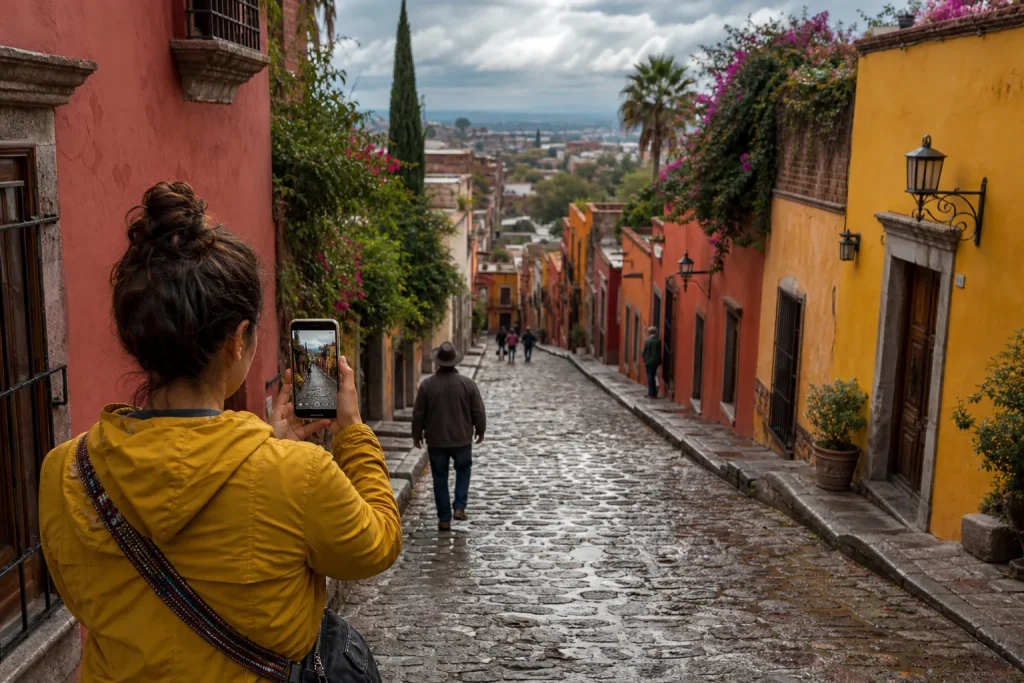
A small color boost can add life to a phone photo, but too much can flatten skin, skies, and quiet details. Learn how to adjust saturation…
Editing · 8 min read
A saturation boost can make a phone photo feel more vivid, but the same adjustment can turn warm skin orange, push a blue sky toward electric cyan, and erase the subtle color differences in a gray wall. The useful setting is not the strongest one your editor allows. It is the smallest change that helps the subject without making the rest of the frame look processed.
To judge that change, keep the original visible, adjust one control at a time, and inspect more than the brightest color. Skin, sky, and muted details respond differently, so they give you a practical way to spot when an overall increase has gone too far.
What does saturation change?
Saturation describes how vivid or intense a color appears. Raising it pushes colors away from gray; lowering it moves them closer to gray. It does not simply brighten a photo, and it does not selectively improve whichever color you have in mind. A global saturation slider affects the image as a whole, including colors that were already vivid and areas where color is meant to stay quiet.
Phone editors may also offer a control called vibrance. It often makes a more restrained adjustment to less saturated colors, though its exact behavior varies by app. Treat the name as a clue, not a promise: compare the image before and after rather than assuming one control is automatically natural.
Before editing, ask what feels missing. If the whole image looks dull, a slight saturation increase might help. If only a red jacket feels weak, a global change may be the wrong tool; a selective color control, if your editor has one, lets you target that color instead. If the photo looks flat because the light is soft or the contrast is low, saturation alone may not address the cause. Avoid using it to compensate for every kind of dullness.
How should you prepare the photo?
Open the original in your phone’s built-in Photos editor, Google Photos, Lightroom Mobile, Snapseed, or another editor you already use. If you plan to make a larger set of adjustments, use a copy or keep the original available so you can return to it. Start with a frame that is close to the result you want; a saturation slider cannot restore detail or color distinctions that are absent from the source.
Look at the photo at a comfortable viewing size, then identify three areas to check:
- The subject: Find the main point of attention, such as a person, a painted door, or a bowl of fruit.
- Skin, if present: Check the face and hands in a portrait. Look for natural variation rather than a single, overly warm color.
- Strong color: Inspect a bright shirt, flower, sign, or other vivid area. These are often the first places where an increase becomes conspicuous.
- A quiet area: Find a gray sidewalk, pale wall, shadow, or other region with subtle color. It should retain its character, not acquire a distracting tint.
- The background: Check the sky, foliage, and nearby surfaces. A small change in the subject can affect all of them if the control is global.
Do not spend time hunting for a perfectly neutral area if the scene does not contain one. You need a few recognizable comparison points, not a color-measurement exercise.
How do you make a restrained adjustment?
- Keep a clear starting point. Before moving anything, note how the original looks and where the editor’s control begins. If the app supports a before-and-after view, use it. Otherwise, toggle the edit or reopen the original for comparison.
- Make a small change. Move the saturation control a little in the positive direction, then pause. Avoid dragging straight to a dramatic setting. A subtle shift is easier to judge when you give your eyes a moment to adapt.
- Check the subject first. Does the color now support the subject, or has it become the subject? In a portrait, check skin before admiring the stronger colors in the background. For a still life, make sure the main object has not become unnaturally intense.
- Check the sky and bright colors. Look for a cyan cast in blue skies, overly vivid red or orange objects, and foliage that seems unnaturally strong. These changes can be easy to miss while you focus on the main subject.
- Check muted details. Look at gray, cream, and shadowed areas. If a neutral wall starts to look tinted, or the colors in a dark jacket merge into a muddy patch, the adjustment may be hiding distinctions rather than adding useful color.
- Compare with the original. Toggle the edit off and on. Decide which version better communicates the scene, not which one looks more dramatic at first glance.
- Stop or revise. Keep the adjustment if it helps the subject and leaves supporting colors believable. If it harms one area, lower the global setting or undo it and try a selective control instead.
These checks are more dependable than searching for a universal slider position. Phone screens differ, photos begin with different color, and the scene itself matters. A quiet indoor portrait and a brightly colored market stall do not need the same treatment.
What changes first in skin, skies, and muted details?
Skin can lose its natural variation. With a stronger global increase, warm complexions may shift toward orange or red, while skin in cooler light can take on an odd tint. Pay attention to cheeks, forehead, and hands rather than judging only the overall warmth of the portrait. If the face looks like one flat color, lower saturation and compare again.
Skies can become the loudest part of the frame. A pale blue sky may turn into a strong cyan field, drawing attention away from a person or building. Cloud edges can also feel harsher when the surrounding color is pushed. If you want a richer sky, try a selective blue adjustment when available, and inspect nearby surfaces so they do not pick up an unwanted cast.
Muted details can stop separating from one another. A gray stone path, beige wall, and olive plant may have gentle color differences that help describe their texture and place. Increasing saturation can make those small variations look like unrelated color patches. In shadowed areas, colors may also become muddy. Lowering saturation slightly can restore a calmer balance without making the whole photograph colorless.
These are signs to inspect, not rigid rules. A stylized image may deliberately use strong color. The question is whether the intensity supports the intended mood and whether the important shapes and details remain readable.
When should you use a selective control?
If the overall image is already convincing but one color needs attention, look for controls such as HSL, color mix, or selective color. These let you adjust a color family—often red, orange, yellow, green, aqua, blue, purple, or magenta—without raising every color equally. The labels and available tools vary between apps.
Make the smallest targeted change you can see. Raising blue saturation to strengthen a sky may also affect blue clothing or reflections. Increasing orange can affect both a terracotta wall and skin. After each adjustment, inspect the whole frame, not just the area you intended to change. If your editor offers masks or brush adjustments, use them only when you can see where the adjustment is being applied; a rough selection can create visible edges or uneven color.
Say you have a portrait of a friend beside a blue-painted wall. In the original, the face looks natural, but the wall appears less vivid than it did in person. You try a small global increase and notice the skin turning warmer while the wall improves. You undo that change, select the blue color control, and raise it slightly. The expected visible result is a more present wall while the face remains closer to its original appearance. You then check the friend’s shirt and any blue reflections, because the color selection may affect those too.
If a selective adjustment still alters important areas, a quieter overall image may be the better edit. Not every detail needs to match the way it looked to your eyes at the scene; the photo only needs a coherent color relationship.
How can you tell when the stronger version is too much?
Compare a restrained version with a stronger one by switching between them rather than staring at one edit for a long time. The stronger version may look exciting in isolation because your eyes adapt to its color. Returning to the original helps reveal whether the change improved the photograph or merely increased its intensity.
Look for practical warning signs: skin that no longer resembles the lighting in the scene, a sky that competes with the subject, bright objects that appear to glow, or muted surfaces that have become patchy. Also consider whether a color change makes the subject easier to recognize. If the frame feels more distracting, the extra saturation is not doing useful work.
One quick check is to step away from the photo briefly, then view the before-and-after versions at the same size. You do not need to zoom into every pixel or inspect the image on several devices for an ordinary share. Those extra checks are not worth the effort unless the image is intended for a particular display or careful print; start with the actual viewing context that matters to you.
What should you keep in the final edit?
Keep the version in which color supports the subject, skin remains plausible, the sky does not take over, and quieter details still feel distinct. That may be the original, a restrained global adjustment, or a targeted edit. The right decision is not the one with the most vivid color; it is the one that gives the viewer a clear sense of what matters in the frame.
Before saving or sharing, compare once more with the original and make sure you have not accidentally changed the whole look while correcting one area. If you are unsure, return the slider toward its starting point and check again. A small, readable adjustment is easy to live with, and leaving some color understated is often what lets the subject stand out.